

If your Google Business Profile is not showing up where you expect, the first step is to identify exactly what is missing. A profile you cannot access, a profile that requires verification, a profile affected by a policy or enforcement issue, and a profile that does not appear for a particular search are different problems.
Avoid making repeated changes before identifying the issue. Start by checking whether you can access the profile, reviewing any verification or status information Google provides, confirming the business information, and determining whether the problem affects the profile itself or only its visibility for particular searches.
Quick Answer: If your Google Business Profile is not showing up as expected, check whether you can access the correct profile, whether Google is asking for verification or another action, whether the profile has been suspended or disabled or has another applicable profile restriction, and whether the business information accurately represents the business. If the profile is accessible and eligible but simply does not appear for a particular search, treat that as a search-visibility question rather than assuming the profile itself is missing.
What Does “Not Showing Up” Mean?
“My Google Business Profile is not showing up” can describe several different situations. Identifying which one applies can prevent you from troubleshooting the wrong problem.

- You cannot find or manage the profile through the Google Account you are using.
- Google is asking you to verify the business or complete another verification step.
- The profile has been suspended or disabled, or Google has applied another applicable profile restriction.
- Recent business-information changes are being reviewed or have resulted in another required action.
- The profile exists, but it does not appear for a particular search query or where you expected to see it.
- Another profile for the business or location already exists.
These situations require different checks. For example, an access problem should not be treated as a ranking problem, while a suspended profile should not be approached as ordinary Google Business Profile optimization.
Common Reasons a Business Profile May Not Show Up as Expected
You Are Using the Wrong Google Account or Do Not Have Access
Before changing the profile, confirm that you are signed in with a Google Account that has access to the intended Business Profile.
If a verified Business Profile is owned by someone else and you are authorized to manage the business, Google provides a process to request ownership rather than creating another profile. Traffisite’s guide to Google Business Profile access explains the ownership and management side of this process in more detail.
The Business Profile Needs Verification
Google may require a business to complete verification before it can fully manage its Business Profile. The verification methods available to a business are determined by Google and can vary.
If Google is requesting verification, follow the method made available for that profile rather than assuming every business will receive the same option. See Traffisite’s guide to Google Business Profile verification for a more detailed explanation.
The Profile Has Been Suspended or Restricted
Google may suspend or disable a Business Profile that does not follow its guidelines, and other profile restrictions may also apply in some situations. If Google provides information about an enforcement or restriction issue, review that information before making further changes or submitting an appeal.
A suspension should be treated as a policy and profile-status problem rather than simply a visibility problem. Traffisite’s guide to a suspended Google Business Profile covers this situation separately.
The Business Information Does Not Meet Google’s Requirements
Businesses represented on Google Business Profile are subject to Google’s eligibility and representation requirements. Information such as the business name, address or service area, business type, and other profile details may therefore need to be reviewed when troubleshooting a profile problem.
Compare the profile with the business’s real-world operations and Google’s current requirements instead of changing information solely to try to improve visibility. Traffisite’s overview of Google Business Profile guidelines provides a useful starting point.
Recent Changes May Require Review or Another Action
Changes to Business Profile information may be reviewed by Google, and certain changes can result in another verification requirement or other requested action.
If the issue started after an edit, review the profile for pending changes, verification requests, or other instructions before repeatedly editing the same information.
An Existing Profile May Already Represent the Business
If you cannot create or claim the profile as expected, check whether a Business Profile for the business or location already exists.
Creating another profile is not automatically the correct solution. If an unverified profile already exists, Google provides a process to claim it. If a verified profile is owned by someone else, an authorized business representative can request ownership. Google also provides a process for resolving duplicate profiles.
If you are working with an existing listing, Traffisite’s guide to claiming a Google Business Profile explains the claiming process in more detail.
The Profile Exists but Does Not Appear for a Particular Search
A Business Profile can exist and be manageable without appearing exactly where you expect for every search. Google says local results are mainly based on relevance, distance, and prominence, so search visibility should be evaluated separately from profile access or verification.
If the profile itself appears healthy, the next question is whether you are troubleshooting profile status or local search visibility. Verification and profile access do not guarantee a particular ranking or placement.
How to Check Your Google Business Profile Status
Use the profile itself and the information Google provides about it as the starting point for understanding its current state.
- Sign in with the correct Google Account. Confirm that the account you are using has ownership or management access to the intended profile.
- Find the Business Profile. Confirm that you are looking at the correct business and location rather than another profile with a similar name.
- Look for verification prompts. Check whether Google is asking you to verify the business or complete another verification step.
- Review available status information. Review any verification prompts, suspension or disabled-profile information, restriction notices, pending changes, or other instructions Google provides.
- Review recent edits. If important information was changed recently, check whether changes are pending or whether Google is requesting another action.
- Confirm the business information. Compare the name, address or service area, category, contact information, hours, and other applicable details with how the business actually operates.
- Check for another profile. Determine whether an existing profile already represents the business or location.
- Separate status from visibility. If the profile is accessible and no status problem is apparent, investigate whether the issue is limited to a particular search rather than the profile itself.
Google Business Profile Not Showing Up: Troubleshooting Checklist
Before submitting an appeal, creating another profile, or making repeated edits, work through a short diagnostic checklist.
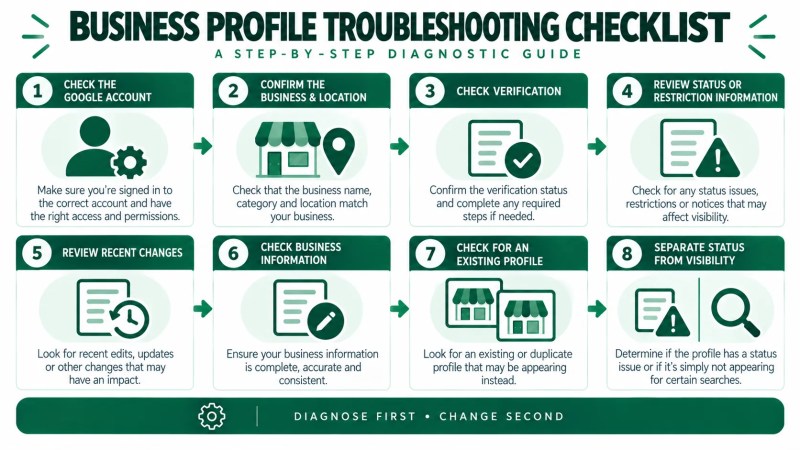
- Am I signed in with the Google Account that has access to this profile?
- Am I reviewing the correct business and location?
- Is Google requesting verification or another verification step?
- Does Google show a suspension or disabled-profile notice, profile restriction, verification request, or other required action?
- Were important business details changed recently?
- Does the profile accurately represent the real-world business?
- Is there already another profile for this business or location?
- Is the profile actually unavailable, or does it simply not appear for the search I tested?
This sequence helps narrow the problem before you choose a remedy. If the issue remains unclear after the profile-level checks, a broader local SEO audit can help separate Business Profile problems from website, local-search, and broader visibility issues.
Google Business Profile Status vs Search Visibility
One of the most important troubleshooting distinctions is the difference between profile status and search visibility.
Profile status concerns whether the Business Profile is accessible, eligible, verified where required, and affected by any known suspension, disabled-profile state, restriction, or other applicable enforcement issue.
Search visibility concerns when and where the business appears for particular searches.
Resolving an access or verification issue does not guarantee that the profile will appear for a particular keyword or in a particular position. Google says local results are mainly based on relevance, distance, and prominence. Likewise, not seeing the profile for one search does not by itself establish that the profile is suspended or missing.
If the profile is accessible and no obvious status problem remains, evaluate visibility separately. Traffisite’s guide to Google Maps SEO discusses local search visibility in more detail.
When to Consider an Appeal or Reinstatement
An appeal is not the first step for every profile that seems to be missing. Google provides an appeal process for certain moderation actions, including suspended or disabled profiles.
Before submitting an appeal, review the profile, the moderation reason or restriction information Google provides, the business information, and the relevant Business Profile requirements. Do not treat an appeal as a general-purpose way to improve search visibility.
If Google has taken an applicable enforcement action, Traffisite’s guide to the Google Business Profile appeal process explains what to review before proceeding.
For situations specifically involving restoration after a profile problem, see the guide to Google Business Profile reinstatement.
Frequently Asked Questions
Why is my Google Business Profile not showing up?
There is no single cause. The issue may involve account access, verification, a suspension or disabled-profile state, another profile restriction, business information, an existing or duplicate profile, recent changes, or visibility for a particular search. Check the profile’s actual state before deciding which issue you need to address.
How do I check my Google Business Profile status?
Sign in with the Google Account associated with the profile, locate the correct Business Profile, and review the information and prompts Google provides. Look for verification requests, suspension or disabled-profile information, profile restrictions, pending changes, or other required actions.
Can an unverified Google Business Profile show on Google?
Verification and public visibility should not be treated as identical concepts in every situation. If Google is requesting verification, follow the verification process made available for the profile. Whether and how a profile appears in local search results should be evaluated separately rather than inferred from verification status alone.
Why is my verified Google Business Profile not showing for a keyword?
Verification does not guarantee visibility or a particular position for every search. Google says local results are mainly based on relevance, distance, and prominence. If the profile is accessible and there is no apparent status problem, investigate the issue as a local search-visibility question rather than assuming verification has failed.
Should I create another Google Business Profile if mine is missing?
Not automatically. First check whether a profile already exists for the business or location and whether the appropriate process is to claim it, request access, or resolve a duplicate. Google generally allows one Business Profile per business, and a profile identified as a duplicate may not appear on Google Search or Maps.
Should I appeal if my Business Profile is not showing?
Only when the profile is affected by a moderation or enforcement action for which Google provides an applicable appeal process. An appeal is not a general solution for a profile that simply does not appear for a particular search.
Diagnose the Profile Before Trying to Fix It
When a Google Business Profile is not showing up as expected, identify the type of problem before taking action. Check account access, verification, suspension or restriction information, business information, recent changes, and existing profiles first.
If those checks show that the profile itself is accessible and no obvious status issue remains, separate the problem from profile management and investigate local search visibility instead. That distinction can help you choose a more relevant next step and avoid unnecessary profile changes.