

Google Business Profile verification confirms that you’re authorized to manage the business represented by the profile. Verification is an important step in establishing and managing a Business Profile on Google.
Verification can feel confusing because the methods available aren’t necessarily the same for every business. This guide explains the verification methods you might see, how video verification works, and what to check if a verification attempt doesn’t go through.
Quick Answer: Google automatically determines which verification methods are available for your Business Profile. Depending on the profile, you may see options such as video recording, phone or text, email, live video call, postcard, or instant verification. If verification is unsuccessful, check that your business information follows Google’s Business Profile guidelines and make sure any requested verification evidence clearly demonstrates the business and your authorization to manage it.
What Google Business Profile Verification Is
Verification confirms that you’re authorized to manage a business on Google. Once verified, you can manage business information and interact with customers through the Business Profile.
You’ll commonly encounter verification when adding or claiming a Business Profile. Google may also require a verified business to verify again after changes to some business information. The verification methods aren’t manually selected from a universal list — Google automatically determines which options are available based on factors such as your business type, public information, region, and business hours.
Verification Methods You Might Be Offered
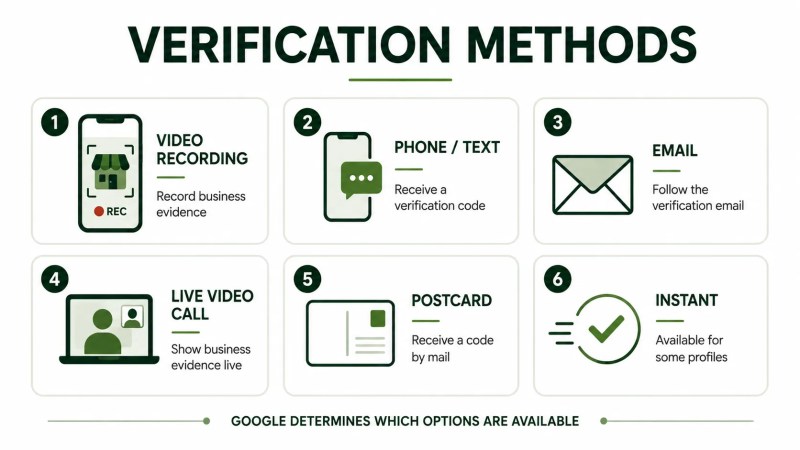
Google supports several Business Profile verification methods, but you won’t necessarily see every option. In some cases, Google may also require more than one verification method.
Video verification
Video verification requires you to record evidence showing your business and demonstrating that you manage or represent it. The evidence Google requires differs between storefront or hybrid businesses and service-area businesses.
Phone or text verification
Some profiles may be offered verification by phone or text. When available, Google sends a verification code to the business phone number through a call or text message.
Email verification
Some profiles may be offered verification by email. If this option appears, use the email address shown on the verification screen and follow the instructions Google sends.
Live video call
Some businesses may be offered verification through a live video call with a Google support representative. During the call, you may need to show your current location, business or equipment, and evidence that you manage the business. Live video verification isn’t available for every business.
Postcard verification
If postcard verification is available, Google mails a verification code to the business address. You then enter that code in your Business Profile to confirm that the business is at the listed address. Google notes that postcard verification isn’t available for every business.
Instant verification
In some cases, Google can verify a profile instantly. Google says this can happen when the business’s website is verified with Google Search Console. Instant verification isn’t guaranteed, and the available verification options are still determined by Google.
How Google Business Profile Video Verification Works
If Google offers video recording as your verification method, you’ll need to provide evidence of the business and your authorization to manage it. For storefront and hybrid businesses, Google may require the video to show the surrounding location, permanent business signage, and evidence that you manage the business. For service-area businesses, the video may need to show where the business operates, work-related tools or equipment, and proof that you manage or represent the business.
A few practical steps can help you meet Google’s video requirements:
- Plan what you need to show before starting the recording.
- Record the video as one complete, unedited recording with no breaks.
- Make sure the video is at least 30 seconds long.
- Record and upload it from a mobile device through your Business Profile.
- Clearly show the location, signage, equipment, or management evidence required for your business type.
- Do not include sensitive or private information or other people’s faces.
After you upload your video, Google reviews it. Google says this review can take up to five business days. If the video isn’t accepted, Google provides the reasons it didn’t meet the requirements. You can select “Review issues,” check what was missing, and record a new video.
What to Check When Verification Doesn’t Go Through
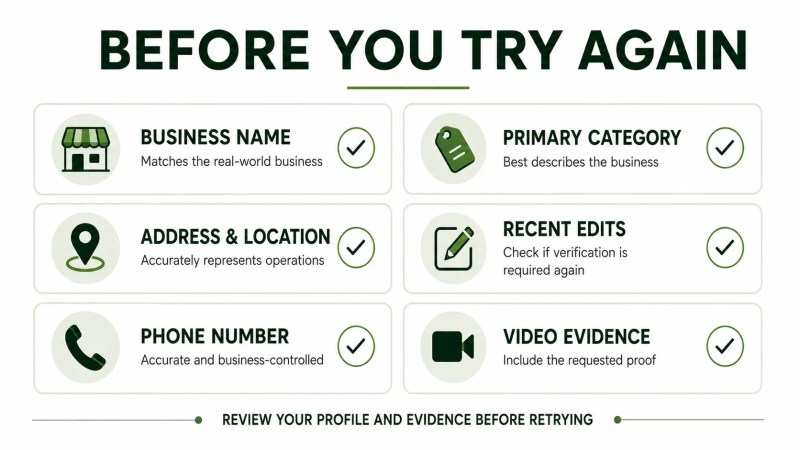
A failed, delayed, or repeated verification request doesn’t always have one obvious cause. Before trying again, review the profile information and make sure the evidence you’re providing meets Google’s requirements.
- Business name — make sure the profile uses the business’s real-world name as it’s consistently represented on signage, your website, stationery, and other branding.
- Address and location — make sure your address or service area accurately represents how and where the business operates. Service-area businesses that don’t serve customers at their business location should not display that address to customers.
- Phone number — make sure the number connects to the individual business location and is under the direct control of the business.
- Category selection — choose a primary category that best and most specifically describes your overall business.
- Recent edits — changes to some business information may require the profile to be verified again.
- Video evidence, if applicable — make sure the recording includes the location, business, and management evidence Google requires for your business type.
If Google shows more than one available verification method, try one of the options provided on the profile. If you’re still unable to verify the business after following the available methods and requirements, Google recommends contacting Business Profile support.
Getting Help With a Stuck Verification
A checklist can help you catch inconsistencies before another verification attempt, but Google controls which verification methods are available and reviews the information submitted during verification. Once the profile is verified, keeping its information accurate and aligned with your website becomes an ongoing local SEO task. If you’d rather have that broader work handled for you, our local SEO services cover Business Profile setup and ongoing optimization as part of a wider local visibility strategy.
If you’re managing several locations, it’s also worth looking beyond one verification attempt and reviewing the consistency of your broader local search presence. Our local SEO guide explains how Business Profile management fits into a wider local SEO strategy.
FAQ
Can I choose my own Google Business Profile verification method?
No. Google automatically determines which verification methods are available and says they can’t be changed manually. If more than one option is available on your profile, follow one of the methods Google provides.
How long does Google Business Profile verification take?
Timing depends on the method. Google says verification review can take up to five business days after you complete the verification steps. For postcard verification, Google says most codes arrive within 14 days.
Why is video the only verification option showing for my business?
Google automatically determines which verification methods are available based on factors such as your business type, public information, region, and business hours. If video is the only option displayed, follow the video verification process shown on your profile.
What happens if my verification video gets rejected?
Google provides the reasons a submitted video didn’t meet its requirements. On your Business Profile, select “Review issues,” check what was missing, then record and upload a new video that includes both the original evidence and the missing information Google identifies.
Next Steps
Verification gives you control of your Business Profile, but the work doesn’t end there. Keeping business information accurate, choosing appropriate categories, and maintaining the profile are ongoing parts of local search management. For a deeper look at what comes next, see our guide to optimizing your Google Business Profile, or learn how Business Profile management connects to broader visibility in Google Maps SEO.