

A Google Business Profile service area tells potential customers which places your business serves. For plumbers, cleaning companies, HVAC contractors, mobile repair providers, and other businesses that travel to customers, getting these settings right is part of presenting accurate business information on Google Search and Maps.
But setting a service area is not the same as opening another business location. A company may serve several cities while operating from one base, and it should not create extra profiles or display addresses that do not represent eligible customer-facing locations.
This guide explains how Google Business Profile service area settings work, which businesses can use them, how to select appropriate coverage areas, and what to check before saving changes.
Quick Answer: To configure a Google Business Profile service area, open your Business Profile, select Edit profile, go to Location, edit the Service area field, and enter the cities, postal codes, or other supported areas you actually serve. Google allows up to 20 service areas and generally recommends keeping coverage within about two hours’ driving time of your business base. If customers do not visit your business address, remove the address from public display. Do not use additional cities or virtual addresses to create misleading business locations.
What Is a Google Business Profile Service Area?
A Google Business Profile service area describes the geographic locations where an eligible business travels to customers or delivers its services. Instead of relying only on a public storefront address, the profile can communicate the places the business actually serves.
For example, an air duct cleaning company based in one city may regularly complete jobs in that city and surrounding communities. Its Google Business Profile can identify those communities as service areas when they reflect its actual operating coverage.
Google’s official service area instructions explain that eligible service-area and hybrid businesses can select cities, postal codes, or other supported geographic areas.
Importantly, a service area is not a separate office, branch, or storefront. Selecting an additional city does not mean the business has a physical location there.
Service-Area Business vs. Hybrid Business
Before editing GBP service area settings, determine how customers interact with the business. Google distinguishes between businesses that visit customers and those that both receive customers at a location and travel to them.
Before using these settings, confirm that the business is eligible for a Business Profile. Google’s business eligibility guidelines require businesses to make in-person contact with customers during their stated hours, subject to specific exceptions listed by Google. Online-only businesses are not eligible. Confirm the business meets the applicable requirements before choosing a service-area or hybrid setup.
Service-Area Business
A service-area business visits or delivers to customers but does not serve them at its business address.
Examples may include mobile cleaners, plumbers, electricians, and contractors who travel to customer properties without operating a customer-facing storefront.
For this type of business, the service area describes where work is performed, while the business address should not be displayed to customers.
Hybrid Business
A hybrid business serves customers at its physical business address and also visits or delivers to them.
For example, an eligible vehicle repair business might receive customers at a properly staffed workshop while also providing roadside assistance.
A qualifying hybrid business can show its storefront address and list a service area. Google requires businesses displaying a storefront address to meet its applicable location requirements, including permanent signage.
Google’s guidelines for representing a business explain the distinctions between storefronts, service-area businesses, and eligible physical locations.
If the business does not genuinely receive customers at its address, it should not describe itself as a customer-facing storefront simply to display a map pin.

How to Set or Edit Your Service Areas
Google provides a service area field within an eligible Business Profile. The exact interface can change, but its current documented process is straightforward.
- Open your Business Profile. Sign in to the Google account with access to the business you manage.
- Select Edit profile. Open the business information editing options.
- Go to Location. Find the section containing address and service area information.
- Edit the Service area field. Select the edit option beside Service area.
- Add your actual coverage locations. Choose suggested areas or enter supported cities, postal codes, or other areas where the business provides services.
- Review the selected areas. Remove any location outside your practical operating coverage and confirm that the list reflects the business accurately.
- Select Save. Review the profile afterward to confirm that the changes have been applied.
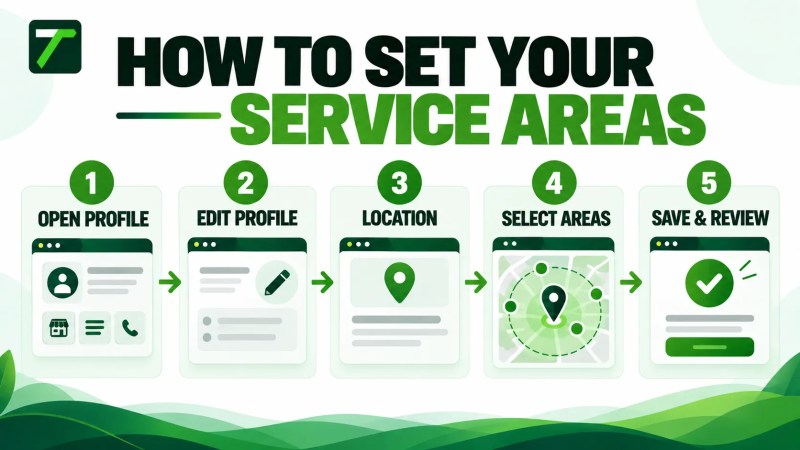
Google currently allows up to 20 selected service areas. Its documentation also notes that approved edits may take up to 48 hours to appear on the profile.
When a business stops serving a location, return to the same Service area field, remove the area from the selected list, and save the update.
If you are setting up a profile for the first time, the broader Google Business Profile guide provides useful background on the profile’s main features.
How to Choose the Correct Coverage Areas
Google Business Profile service area settings should reflect where the business actually accepts and completes jobs, rather than every city in which it hopes to appear in search results.
Before selecting areas, review the business’s real service coverage:
- Home base: Where are employees, vehicles, and equipment normally based?
- Regular jobs: Which communities does the company already serve?
- Travel time: Can the team realistically reach customers in the selected locations?
- Operational capacity: Are staff and equipment available to fulfill enquiries from those areas?
- Service limitations: Are some locations served only for certain types of work?
- Customer expectations: Would a customer in each listed area reasonably expect the business to accept their enquiry?
Understand Google’s Coverage Guidance
Google allows up to 20 service areas and recommends that the boundaries of the overall coverage area generally remain within approximately two hours’ driving time from the business base. Google’s guidelines also acknowledge that larger areas may be appropriate for some businesses.
The driving-time guidance should not be confused with a feature for drawing a radius on the map. Google does not currently let businesses set their service area by choosing a distance-radius boundary. Instead, businesses select supported geographic areas.
For a company with an unusually large legitimate operating territory, assess the actual business circumstances against Google’s guidance rather than assuming that adding distant cities is automatically acceptable.
Choose Areas Customers Can Recognize
When possible, use supported city or community names that correspond to real customer locations. Postal codes or other geographic areas may also be suitable depending on how the business operates and which options Google offers.
For example, a residential cleaning provider might serve one city and several surrounding towns. It should choose locations it genuinely covers rather than listing unrelated major cities to attract more enquiries.
The purpose is to communicate coverage clearly, not to maximize the number of entries.
When to Hide Your Business Address
One of the most important differences between Google Business Profile service area businesses and storefronts is whether customers visit the physical business address.
If a business travels to customers but does not serve them at its address, Google’s instructions say to remove the business address from public display and show the relevant service areas instead.
To hide the public address on an eligible service-area profile, open Edit profile, go to Location, edit Business location, turn off Show business address to customers, and select Save. Google provides these steps in its business address instructions.
This may apply to a contractor who operates from a home base, a cleaning company that sends teams to customer properties, or a mobile service provider without a public office.
A business may still need to provide accurate location information during Google’s verification process. Keeping a real operating address private from customers is different from claiming a false business location.
For a broader discussion of the distinction, see Traffisite’s article on Google Business Profile without an address.
What If Customers Visit Your Location?
If the business genuinely receives customers at an eligible, staffed, customer-facing location and also serves customers elsewhere, it may qualify as a hybrid business.
Do not hide a legitimate storefront address solely because the company also provides mobile services. Likewise, do not display an address that is not an eligible customer-facing location.
The correct setup depends on how the business actually operates.
Service Area Mistakes to Avoid
Misleading geographic information can create customer confusion and may conflict with Google’s Business Profile guidelines. Review the following mistakes before editing your profile.
- Adding cities you do not actually serve: Do not select a distant market simply because it has attractive search demand.
- Using a virtual office as a physical branch: A rented mailing address where the business does not operate is not an eligible standalone location.
- Displaying a home or private base as a public storefront: If customers are not served there, follow Google’s instructions to hide the address.
- Creating a profile for every service-area city: Additional coverage areas do not automatically justify separate Business Profiles.
- Using an unsupported radius setting: Select supported geographic locations instead of expecting to draw a custom distance circle.
- Leaving outdated areas selected: Remove locations the business no longer serves.
- Confusing coverage with guaranteed visibility: Listing a city does not guarantee strong rankings throughout that city.
Businesses should also avoid editing unrelated profile information merely to imply they operate from another location. The business name, address information, categories, hours, and contact details should accurately represent the real operation.
For a wider review of policy-related issues, Traffisite’s Google Business Profile guidelines article is a related resource.
Do Service Areas Improve Google Maps Rankings?
Setting an accurate service area helps communicate where a business can serve customers. It should not be treated as a guaranteed way to rank in every city selected.
Google explains in its local ranking guidance that local results are primarily determined by relevance, distance, and popularity. Google also describes prominence in terms of how well-known a business is.
These factors are different from simply specifying service coverage. A business may legitimately serve an area without appearing prominently for every relevant search performed there.
For that reason, expanding the service area list should not be presented as a shortcut to stronger Google Maps rankings. Focus instead on accurate profile information, the services genuinely offered, and the overall quality of the business’s local search presence.
Businesses looking for help with broader visibility can explore Traffisite’s local SEO services, which are more comprehensive than changing the Service area field alone.
Service Areas and Multiple Business Locations
A business may operate in several communities without having separate physical locations in those communities. That distinction matters when deciding whether it needs another Google Business Profile.
Google generally allows one service-area profile for the area served by a business operating from one base. Its guidelines also allow separate profiles for genuinely distinct service-business locations with separate service areas and separate staff at each location, subject to the applicable eligibility requirements.
For example, a contractor with one dispatch base serving three nearby towns should not assume that each town qualifies for its own Business Profile. Those towns may belong in the service areas of the existing profile.
By contrast, a company with genuinely separate operational locations, separate teams, and distinct service territories may need to evaluate each location’s eligibility individually.
Creating extra profiles for virtual offices, rented mailboxes, or cities without a qualifying operation is not a valid substitute for genuine business expansion.
Traffisite’s Google Business Profile multiple locations guide covers the broader distinction between managing multiple locations and extending service coverage.
Keep Your Website and Service Areas Consistent
Customers may check your website after finding your Business Profile. The areas and services described on both should reflect the same real operating coverage.
For example, if a company lists a town as a service area, its website should not suggest that the town is outside the company’s normal coverage. Likewise, a website should not claim that the business has a local office in a city where it only travels to provide services.
Useful website information can include:
- A clear description of the communities served
- Which services are available in those communities
- Any important travel or scheduling limitations
- Accurate contact and enquiry options
- Service descriptions that match the work actually provided
For businesses with genuinely distinct local markets, dedicated website content may help explain the services available in each area. Such pages should provide useful, location-relevant information rather than repeat the same generic text with different city names.
Traffisite’s guide to service area pages for SEO explains this website-content approach in greater detail.
Remember that a website service-area page and a Google Business Profile are different assets. Publishing another city page on your website does not, by itself, make that city eligible for an additional Google Business Profile.
Google Business Profile Service Area Checklist
Use this checklist before saving your settings or reviewing an existing profile.
- Confirm the business is eligible for a Business Profile.
- Determine whether it is a service-area or hybrid business.
- Confirm whether customers genuinely visit the business address.
- Hide the public address if customers are not served there.
- Select only locations where the business genuinely provides services.
- Use supported cities, postal codes, or geographic areas.
- Stay within Google’s current maximum number of service areas.
- Review the overall territory against Google’s driving-time guidance.
- Remove coverage areas the business no longer serves.
- Check that selected areas do not imply nonexistent offices or branches.
- Review whether any additional business location meets Google’s separate-profile requirements.
- Keep the website’s location and service information accurate.
- Review the published profile after changes have been processed.
Service area settings should be revisited when the business changes where it operates, opens or closes a genuine location, or adjusts the services available to customers.
FAQ
How many service areas can I add to Google Business Profile?
Google currently allows up to 20 service areas. The areas should represent actual coverage and can be based on supported cities, postal codes, or other geographic locations.
Can I set a radius for my Google Business Profile service area?
No. Google’s current service area editing system does not support defining coverage by drawing or selecting a distance radius. You must use supported geographic areas instead.
How far can my Google Business Profile service area extend?
Google generally recommends that the overall service area remain within approximately two hours’ driving time from the business base. Its guidance notes that larger territories may be suitable for some businesses.
Do I need to show my address if I travel to customers?
If customers do not visit your business address, Google instructs you to remove the address from public display and use the relevant service area information. A qualifying hybrid business that receives customers at an eligible location may show both its address and coverage areas.
Can I list several cities without opening an office in each one?
Yes, an eligible service-area business can select multiple supported locations it genuinely serves. Listing a service area does not mean claiming to have a separate physical office in that city.
Can I create a separate Google Business Profile for every city I serve?
No. Serving an additional city alone does not establish eligibility for another profile. Separate service-business locations need to meet Google’s applicable requirements, including genuinely distinct operations and staff where the multi-location service-business rules apply.
Will adding more cities improve my Google Maps rankings?
Adding service areas does not guarantee better rankings in those locations. Google describes local ranking as primarily based on relevance, distance, and popularity. Service areas should be selected to represent real customer coverage.
How long do Google Business Profile service area changes take?
Google states that approved service area edits may take up to 48 hours to appear on the profile. If an edit is not reflected as expected, review the profile’s status and Google’s current support guidance.
Set Accurate Service Areas Before Expanding Your Local Reach
A Google Business Profile service area should describe where a business actually provides services, not where it wants to appear to have an office. Accurate coverage areas help customers understand whether the business can serve them, while the correct address settings help keep the profile aligned with Google’s eligibility rules.
Start by confirming whether the business is a service-area or hybrid operation. Review its real travel territory, select supported coverage locations, check address visibility, and remove outdated or misleading entries.
If your business needs a broader local SEO review beyond the service area settings, you can request a free SEO growth plan from Traffisite.