

Adding a Google Business Profile gives an eligible local business a way to manage important business information across Google Search and Maps. The setup process requires accurate information about the business, and the exact options you see can depend on how the business operates and the verification methods Google makes available.
This guide walks through who can create a profile, what to prepare beforehand, and the main steps involved in adding one.
Quick Answer: To add a Google Business Profile, sign in to Google Business Profile with a Google account and follow the prompts to find or add your business. You’ll provide information relevant to your business, such as its name, category, location or service area, and contact details. Google will then provide the verification options available for that business. Before starting, make sure your business information accurately represents how the business operates in the real world.
Who Can Add a Google Business Profile
Google Business Profile is intended for eligible businesses that make in-person contact with customers, either at a physical location customers can visit or by traveling to customers in a local area.
Online-only businesses that do not make in-person contact with customers generally are not eligible for a Business Profile. Because eligibility can depend on the business model, review Google’s current Business Profile eligibility guidelines if you are unsure whether your business qualifies.
Information to Prepare Before You Start
Having accurate business information ready before you begin can make the setup process easier. Depending on your business and the options Google provides, useful information to prepare includes:
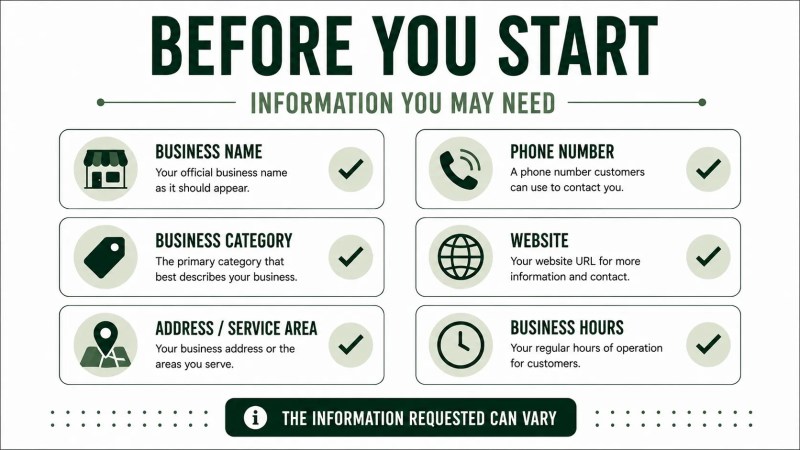
- Business name — use the name your business consistently uses and represents in the real world.
- Business category — identify the primary category that best describes the business and any additional categories that genuinely apply.
- Address or service area — prepare the appropriate location information based on whether customers visit your location or you travel to them.
- Phone number — use a number that connects customers with the business.
- Website URL — have your main business website ready if you have one.
- Business hours — prepare accurate regular hours and update special hours when needed.
It is also useful to review how your core business information appears elsewhere online. If you’re cleaning up business details across directories and other listings, our guide to local SEO citations explains that process in more detail.
How to Add Your Profile: Step by Step
Google can change the exact screens and order of its Business Profile setup process, but the process generally involves the following actions:
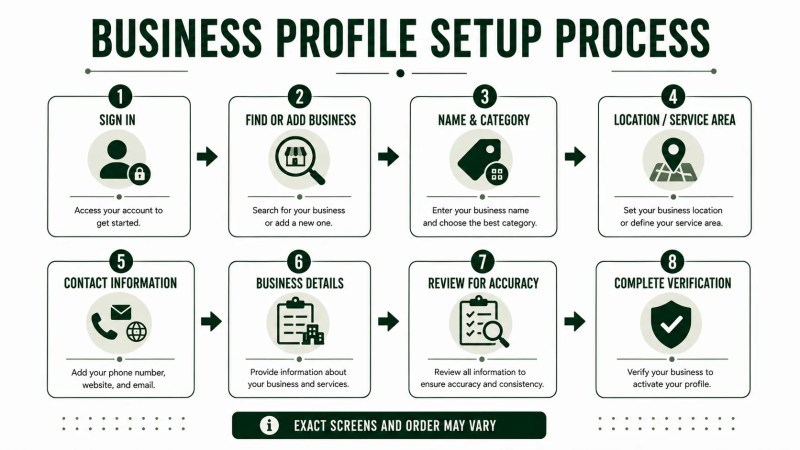
- Sign in to Google Business Profile. Use a Google account that the business can continue to access and manage over time.
- Find or add your business. Search for the business first so you can determine whether a profile already exists before creating a new one.
- Enter or confirm your business name and category. Use the real business name and choose the category that best describes the core business. If you need help evaluating categories, see our guide to Google Business Profile categories.
- Provide the appropriate location information. Storefront and service-area businesses should represent their location or service area according to how they actually serve customers and Google’s current guidelines.
- Add relevant contact information. Provide information such as a business phone number and website when requested and applicable.
- Review additional business information. Google may ask for other profile details during or after setup, such as business hours.
- Review the profile for accuracy. Check that the information accurately represents the real business before continuing.
- Complete verification. Google automatically determines which verification methods are available for the business. Follow the instructions for the options Google provides.
What Happens After You Submit
Google requires verification before you can edit business information and interact with customers through the Business Profile. The verification methods available can vary by business, and Google automatically determines which methods are offered. Our guide to Google Business Profile verification explains this stage in more detail.
After the profile is set up, continue reviewing it as the business changes. Hours, contact details, photos, categories, and other relevant information may need to be updated over time.
Common Mistakes to Avoid
- Adding unnecessary keywords to the business name. The profile name should reflect the business’s real-world name rather than additional marketing terms or service keywords.
- Choosing inaccurate categories. Categories should describe what the business actually does rather than every search term the business wants to target.
- Using an ineligible address. Addresses should follow Google’s current Business Profile guidelines. For example, a virtual office where the business does not actually operate is not eligible. Google separately allows certain co-working offices when the location meets its requirements, including clear signage, receiving customers during business hours, and being staffed by the business’s staff during those hours.
- Leaving outdated business information online. Incorrect or outdated details can create confusion for potential customers, so review important business information when it changes.
Profiles that do not follow Google’s Business Profile guidelines can be suspended or disabled. If that happens, our guide to a suspended Google Business Profile explains what to review and how to approach the next steps.
FAQ
Is it free to add a Google Business Profile?
Google currently allows eligible businesses to add or claim and manage a Business Profile at no charge.
Can I add a profile for a business with no physical storefront?
Yes. An eligible service-area business that travels to or delivers directly to customers can have a Business Profile without displaying its business address to customers. The business still needs to meet Google’s current eligibility and representation requirements.
How long does it take before my profile appears in search results?
There is no single timeline that applies to every business. Verification and profile processing can vary, so check the status shown for your specific Business Profile rather than relying on a fixed timeframe.
Can I manage multiple business locations from one account?
Yes. Google provides Business Profile Manager and business groups for managing multiple Business Profiles. Each location still needs to accurately represent the corresponding real-world business location and follow Google’s applicable guidelines.
Next Steps After Your Profile Is Added
Adding your profile is the starting point. Once you can manage it, review the information available for your business and keep relevant details accurate and current. Our guide to Google Business Profile optimization explains what to review next.
If local visibility is part of a broader growth goal, Business Profile management can also be considered alongside website optimization, citations, reviews, and other local-search work. Traffisite’s local SEO services cover this broader approach.