

A Google Business Profile QR code can give customers a quick way to reach a relevant destination connected to your business on Google. Instead of asking someone to search for your business manually, you can provide a scannable code that opens the destination you selected.
The important part is not simply generating the QR code. You also need to choose the right destination, create the code correctly, test it before publishing or printing, and place it where scanning makes sense for the customer.
Quick Answer: If you want a QR code specifically for Google reviews, Google currently provides one directly through your Business Profile on a computer browser. Go to your Business Profile, select Read reviews, then Get more reviews to access the review link and QR code. For another Business Profile-related or website destination, you can copy the appropriate URL and encode it with a suitable QR code generator. Test the finished code before distributing it.
What Is a Google Business Profile QR Code?
A Google Business Profile QR code is a QR code configured to open a destination related to your business’s presence on Google. A QR code can encode a web address so that a compatible scanning device can use that encoded destination.
The QR code itself is not your Business Profile. It is simply a convenient way to connect a physical or digital customer touchpoint with an online destination.
If you are still setting up or reviewing the profile itself, Traffisite’s guide to Google Business Profile provides broader context about the profile and how businesses can use it.
Choose the Right QR Code Destination
Before creating a QR code, decide what should happen after someone scans it. The destination should match the purpose of the material and the customer action you want to support.
Possible destinations may include:
- a destination that helps customers find relevant information about your business on Google;
- Google’s review destination for customers who want to leave a review;
- a relevant business website page; or
- another appropriate URL that supports the action described next to the QR code.
A QR code placed beside a review request, for example, should not unexpectedly send someone to an unrelated page. The message beside the code and the destination should work together.
Profile or Business Information
If the goal is to help customers find business information on Google, use a destination that leads them to the appropriate business presence. Check the destination before creating the code so customers reach the intended business.
Review Destination
If the purpose is to request Google reviews, Google currently lets businesses access both a review link and a review QR code through the Business Profile. On a computer browser, go to your Business Profile, select Read reviews, and then Get more reviews. Google allows businesses to solicit genuine reviews, but review requests must follow its policies against practices such as incentives and selective solicitation of positive reviews.
Traffisite’s guide to Google Business Profile reviews provides additional context before you create review-focused materials.
Your Website
Not every QR code associated with local marketing needs to lead directly to Google. In some situations, a relevant website page may better match the customer’s next step.
If you are deciding how your website and profile should support each other, review Traffisite’s guide to a Google Business Profile website strategy.
How to Create a Google Business Profile QR Code
The process depends on the destination. For Google review requests, Google currently provides the QR code directly. For another destination, you can encode the appropriate URL using a QR code generator.
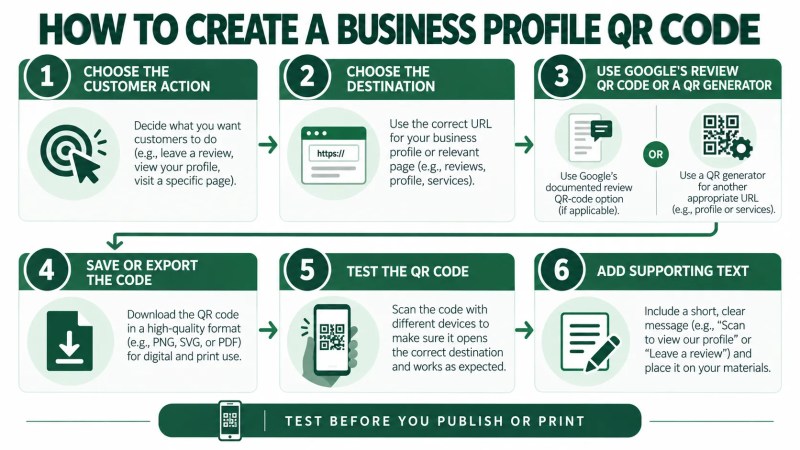
- Choose the customer action. Decide what you want someone to do after scanning the code.
- Get the correct destination. Use Google’s review QR-code option for a review request, or copy the appropriate URL for another destination.
- Create the QR code. If Google does not provide the QR code for the destination you selected, use an appropriate QR code creation tool that can encode the URL.
- Export or save the code. Save it in a format and quality appropriate for where it will be used.
- Test the QR code. Scan the final version before publishing or printing to confirm that it opens the intended destination.
- Add supporting text. Tell customers what they can expect when they scan it.
How to Get Google’s Review QR Code
Google currently provides a direct review QR-code option on a computer browser. Go to your Business Profile, select Read reviews, choose Get more reviews, and then use the displayed QR code. Google says you can also copy the review link from the same area.
Test Before You Publish or Print
Testing is an important practical step because a QR code is not useful if it opens the wrong destination or cannot be scanned reliably in its final presentation.
Test the actual exported or downloaded code rather than relying only on a generator preview. If the QR code will be printed, testing the finished layout before producing larger quantities is a sensible quality-control step.
Keep the Destination Stable
Think about whether the destination is likely to remain useful for the life of the material. Reprinting signs, cards, or other physical materials because a destination no longer works creates unnecessary work.
Where to Use Your Google Business Profile QR Code
A QR code is most useful when it appears at a point where customers have a reason and an opportunity to scan it.
For review requests specifically, Google’s current guidance suggests several placements and channels, including:
- receipts;
- thank-you emails;
- the end of a chat interaction; and
- a printed QR code displayed in the store.
For QR codes leading to other appropriate destinations, businesses can choose placements based on the intended customer action, such as relevant handouts, post-service materials, business cards, event materials, or other useful touchpoints.
The best placement depends on what the QR code does. A code asking for feedback may make more sense after a customer interaction than at the beginning of one.
Give the QR Code Context
A QR code should not require customers to guess what will happen when they scan it. Add a short instruction or call to action that accurately describes the destination.
For example, the surrounding message can explain that the code helps customers find the business online, visit a specific page, or leave a review where appropriate.
Keep the Code Easy to Scan
Practical design decisions matter. QR-code guidance from DENSO WAVE emphasizes appropriate module size and a clear margin around the code. It also warns that distortion, unclear printing, or letters and images interfering with the required margin can make a QR code difficult or impossible to read.
Keep the code visually clear and test the finished design under conditions similar to how customers will encounter it.
Using QR Codes for Google Reviews
Google specifically provides a QR code that businesses can share to make it easier for customers to reach the review flow. The review QR code can currently be generated from a Business Profile using a computer browser.
Google’s guidance says businesses can use the review link or QR code on receipts, in thank-you emails, at the end of chat interactions, or by printing and displaying the QR code in a store.
Using a QR code does not change the policies that apply to review requests. Google allows merchants to encourage reviews based on genuine experiences, but prohibits practices such as offering incentives for reviews, selectively soliciting positive reviews, or pressuring customers about what to write.
If you are creating broader promotional materials around the profile, Traffisite’s guide to the Google Business Profile marketing kit explains how digital and printable customer touchpoints can support profile promotion.
Common Google Business Profile QR Code Mistakes to Avoid
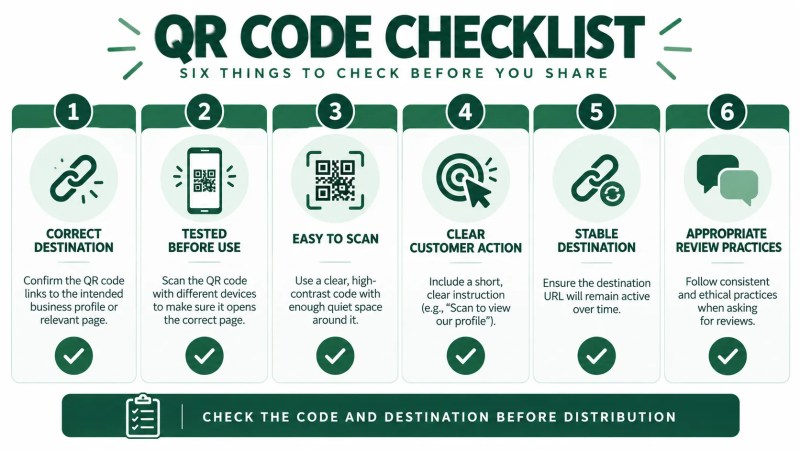
- Using the wrong destination: Confirm exactly where the QR code leads before distributing it.
- Skipping testing: Scan the final version before publishing or printing.
- Making the code difficult to scan: Avoid distortion, inadequate surrounding space, or a final presentation that interferes with readability.
- Providing no context: Tell customers what the QR code is for.
- Using an unstable destination: Consider whether the link is appropriate for long-lived printed materials.
- Ignoring review policies: Review-focused QR codes still need to be used consistently with Google’s review policies.
- Overloading one material: Keep the requested customer action clear rather than presenting several competing QR codes without a strong reason.
Before promoting a profile more broadly, it is also worth checking that the underlying information accurately represents the business. Google’s Business Profile guidelines instruct businesses to reflect their business accurately and represent it consistently as recognized in the real world. Traffisite’s overview of Google Business Profile guidelines provides additional context.
Frequently Asked Questions
Does Google Business Profile have a QR code generator?
Yes, for review requests. Google currently provides a built-in QR code that businesses can access through their Business Profile on a computer browser. Go to the Business Profile, select Read reviews, then Get more reviews to access the review link and QR code. This documented feature is specifically for requesting reviews.
How do I make a QR code for my Google Business Profile?
First decide which destination you want customers to reach. If you want customers to leave a Google review, you can use Google’s built-in review QR code. For another appropriate Business Profile-related or website URL, copy the destination and use a QR code generator capable of encoding a web address.
Can I make a QR code for Google reviews?
Yes. Google currently provides both a review link and QR code through the Business Profile. The QR-code option is currently generated on a computer browser rather than a mobile device.
Is a Google Business Profile QR code free?
Google says businesses can add or claim a Business Profile at no charge, and its current Business Profile help documentation provides the review QR-code feature as part of the review-request workflow. Separate third-party services may have their own terms if you choose to use them for other QR-code destinations.
Where should I put my Google Business Profile QR code?
For review QR codes, Google specifically suggests receipts, thank-you emails, the end of chat interactions, and printed in-store displays. For other QR-code destinations, choose a placement where customers have a logical reason and opportunity to take the intended action.
Should a QR code link to my Business Profile or my website?
Choose the destination based on the action you want the customer to take. If the goal is a Google review, Google’s dedicated review QR code provides a direct option. If the customer’s next step is better handled on your website, a relevant website page may be the better destination.
Make the Destination as Useful as the QR Code
A Google Business Profile QR code can help connect offline and digital customer touchpoints with an online destination, but generating the code is only one part of the process. Start by deciding what customers should do, choose the correct destination, create or obtain the QR code, test it, and place it where that action makes sense.
For businesses that need broader help connecting their Business Profile, website, and local search presence, Traffisite’s local SEO services provide a relevant next step.